Testing Your Chat Widget
In this tutorial, you will learn how to test out your chat widget and see exactly how it works both from your end and the other person's.
With SMS and email options, clients see a window where they can enter their name, mobile number, email, and message.
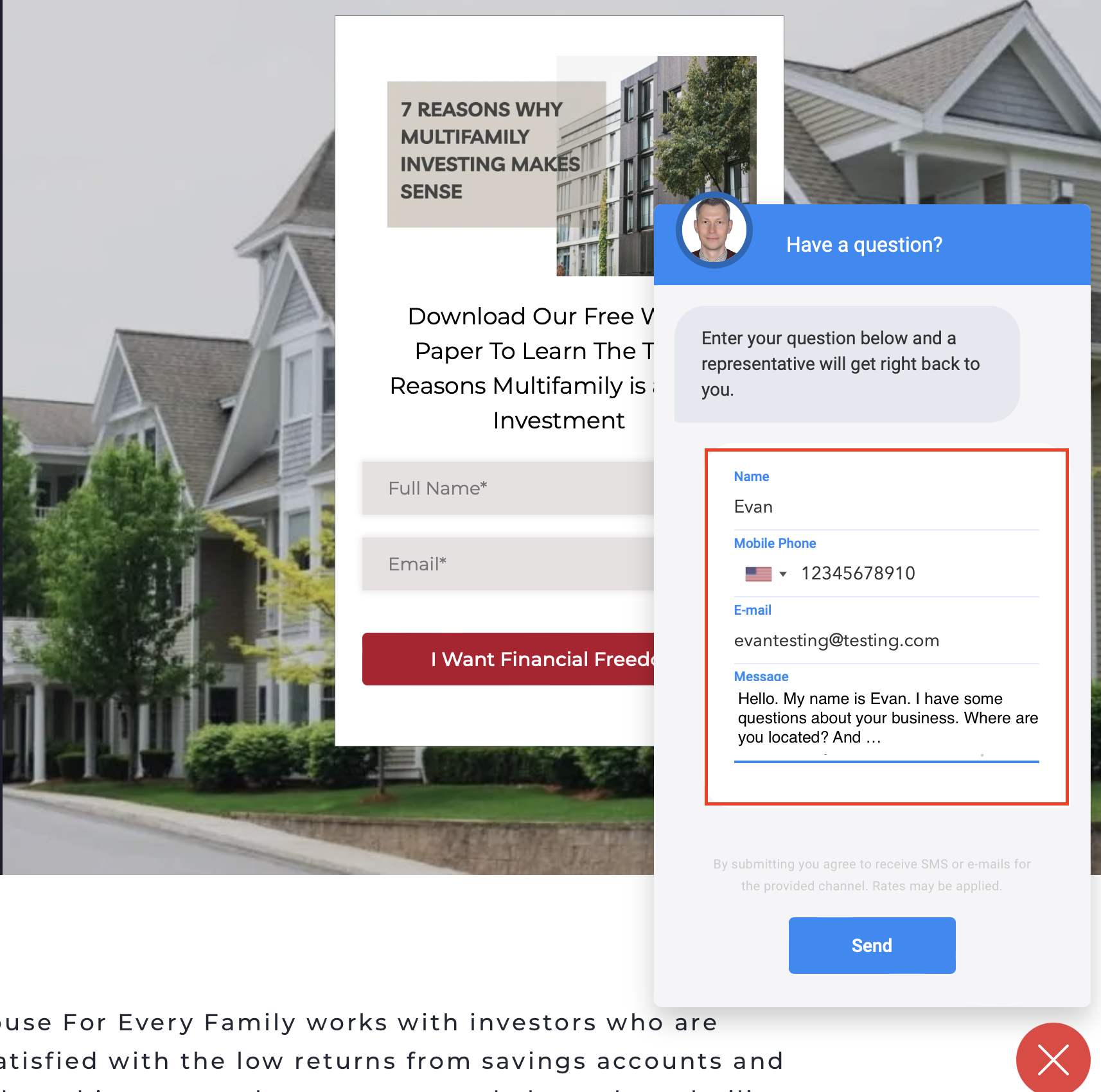
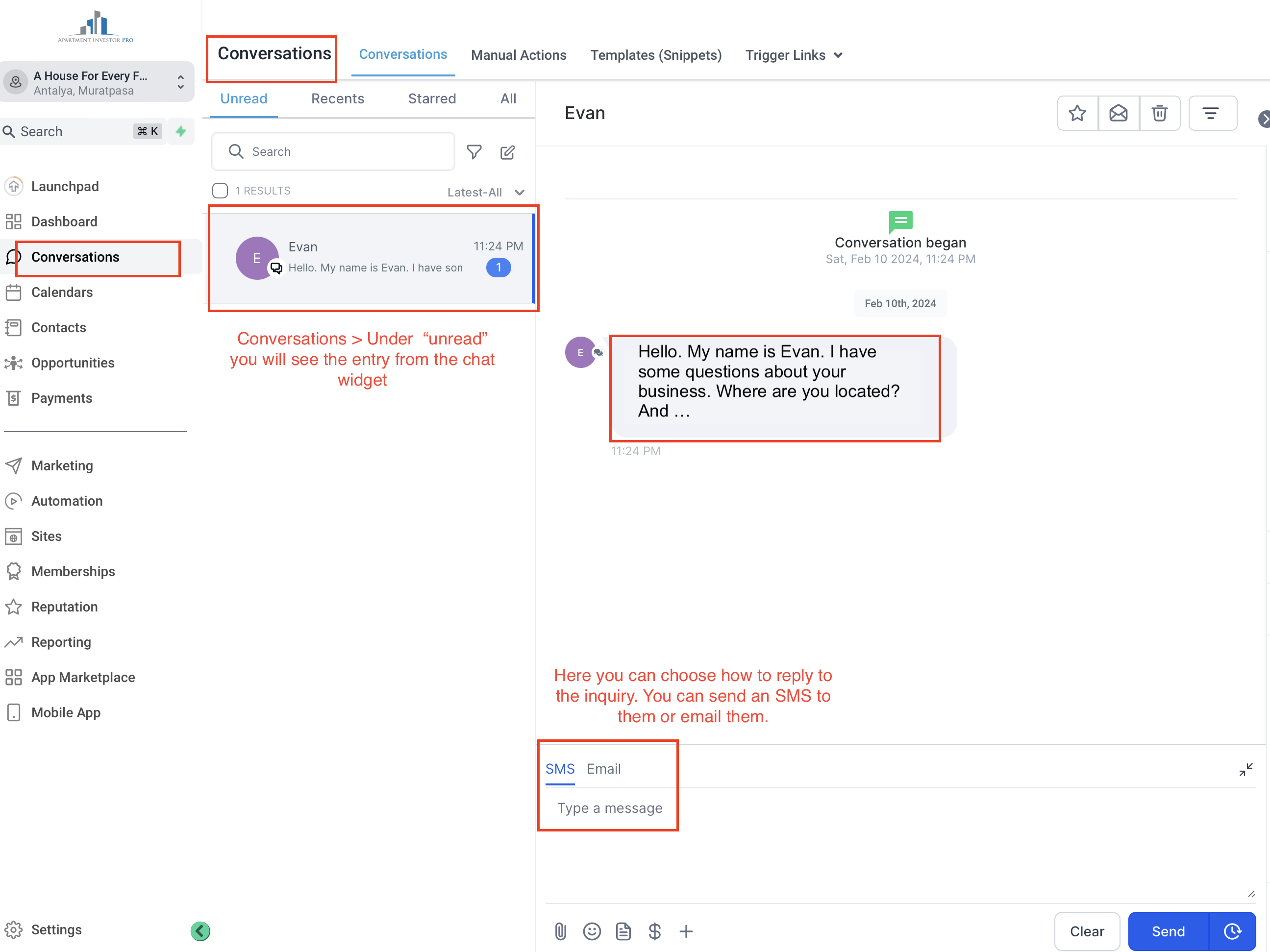
Upon submission, it will be accessible to you in your “Conversations" under the "Unread" section. From there, you can review the inquiry and respond promptly via SMS or email.
With the Live Chat feature, clients will encounter an interface similar to this:
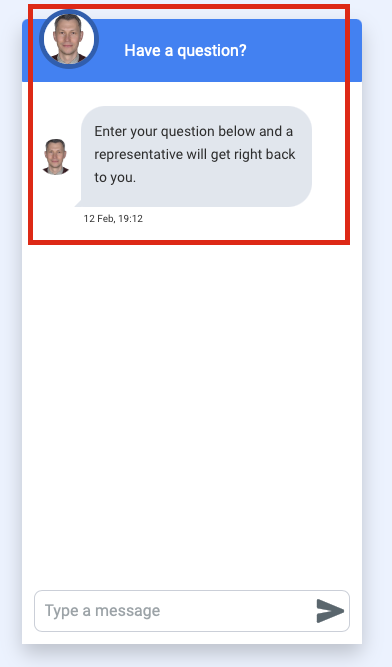
A person can start a conversation by simply writing in the designated "type a message" area.
You can find this in your "Conversations" under the "Unread" section. It's worth noting that the message status will be indicated as "Live Chat".
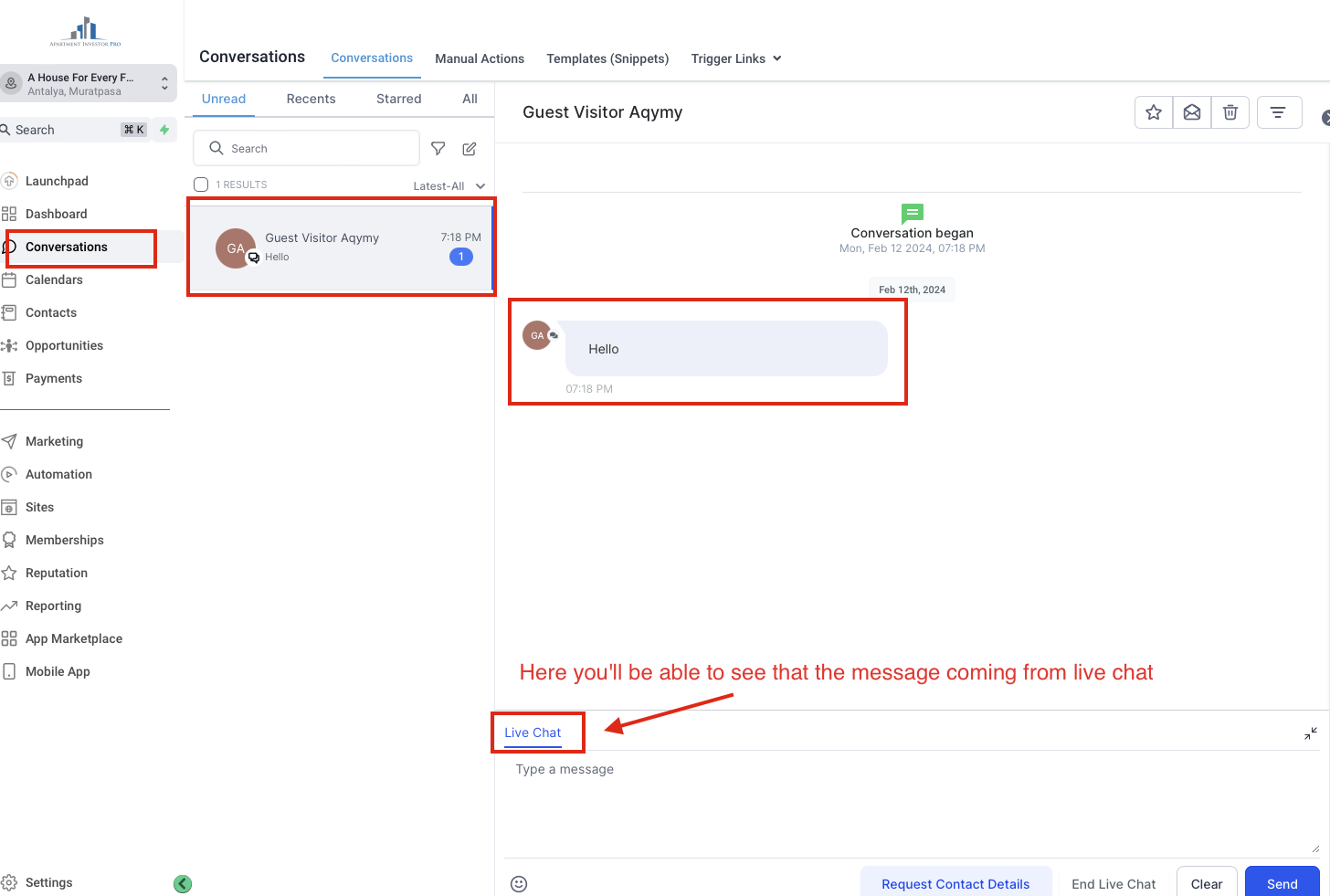
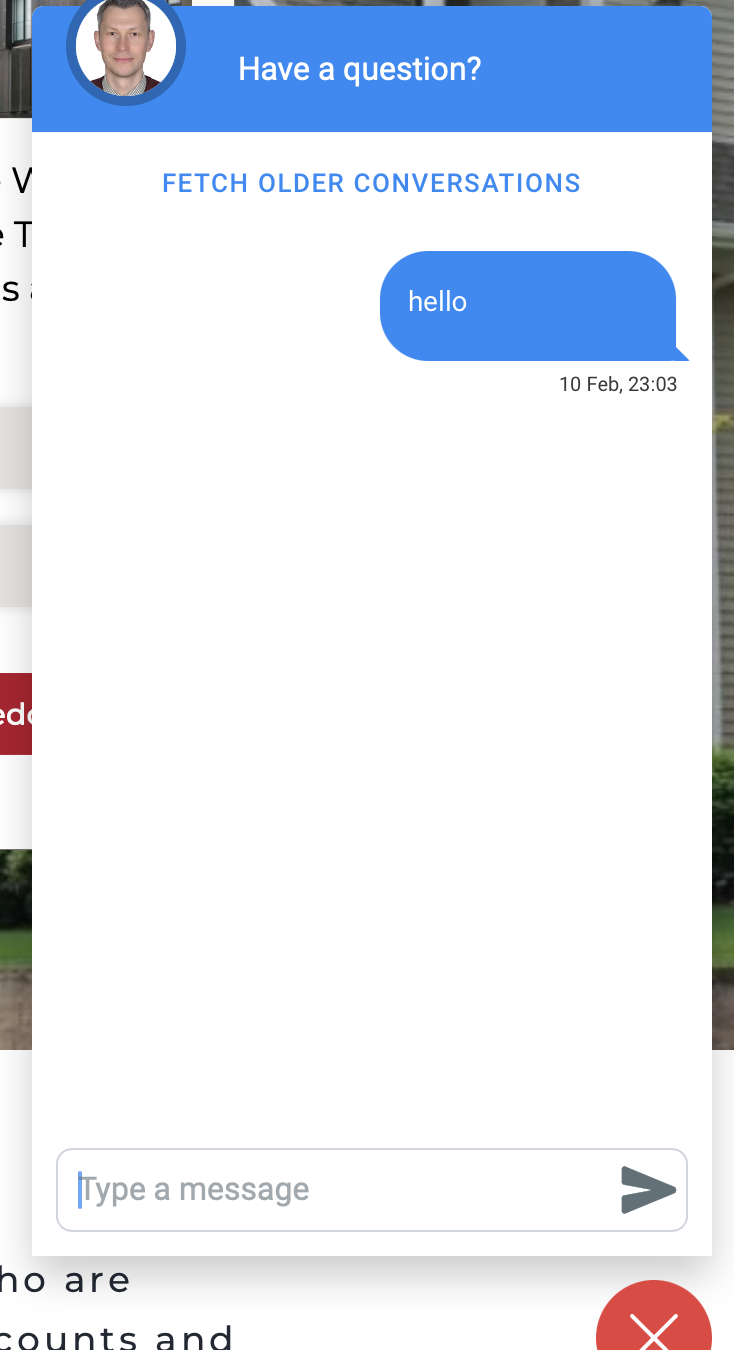
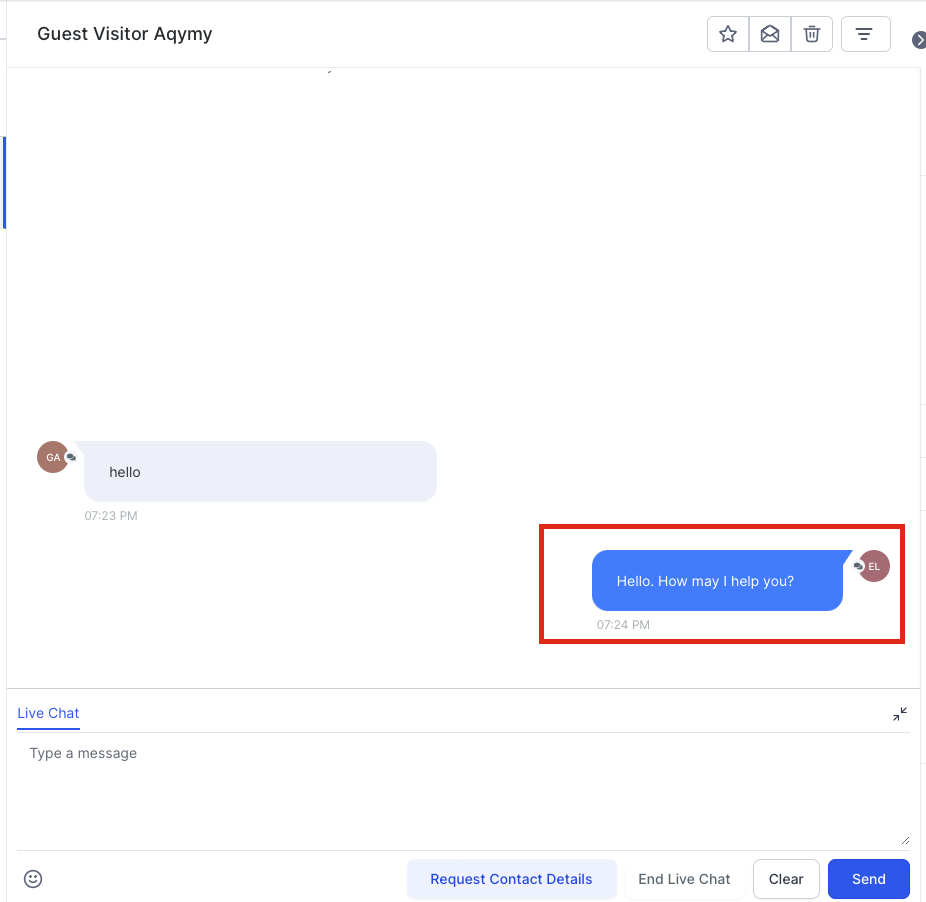
You can continue with the conversation by typing your message and clicking send.
This is what the person will see on the other end of their “ Live chat”.
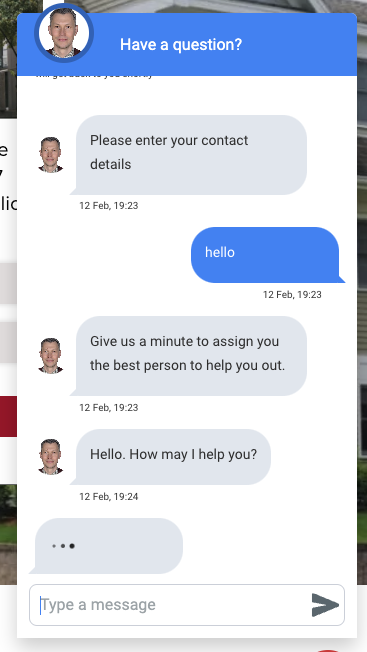
In case the response time takes longer, individuals will be prompted to share their contact details. This enables either you or a member of your customer support team to connect with them later.
