
Connect Your Domain & Get Your Website Live
**Important Notice** Our general policy is to connect your domain to your website for you, so you can skip this tutorial and fill out this form. However, if for some reason you prefer to connect your domain yourself, you can follow the steps below. Remember, having us connect it for you is faster, easier, and more efficient for you...
Log into your account using this link
At the bottom of the menu on the left-hand side, click on Settings > Domains & URL Redirects
Click the blue "+ Connect a domain” button in the top right corner

Next to "Funnel/Website/Store/Blog/Webinar" click Connect

Type in your domain name (WITHOUT www. at the beginning)

On the next screen, make sure the option to add your domain WITH www. is selected and click Continue

If your domain is from Google Domains, GoDaddy, or Cloudflare, you'll see an "Authorize" button. Click on it to allow the program to access your DNS settings. Follow the instructions that follow to automatically connect your domain. Once everything is finished, close the browser tab and return to your AIP account page and skip to step 10 of this lesson.
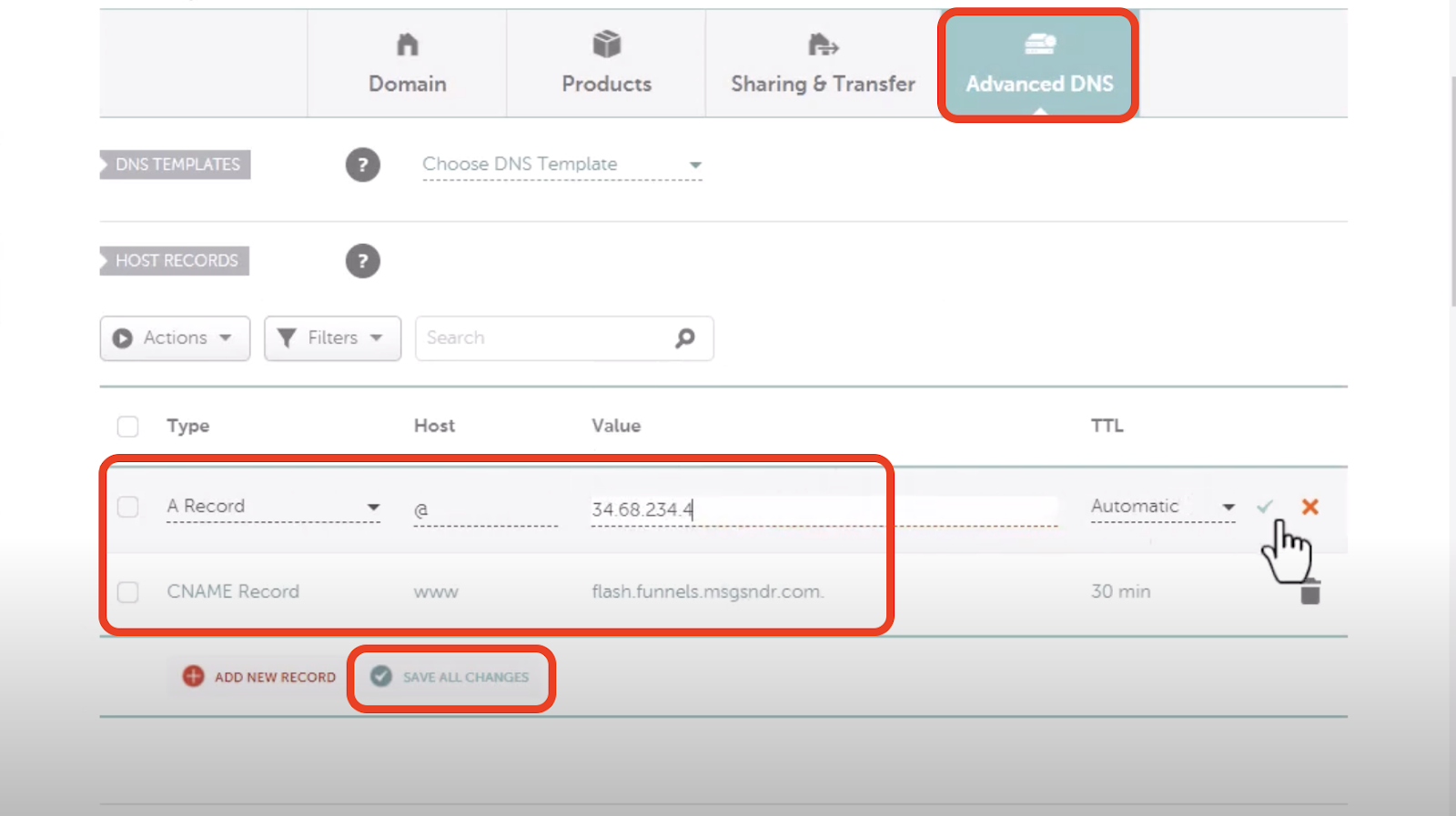
If you use any other domain provider, the next screen will give you two settings you need to add to your domain’s DNS settings. (Note: if your DNS settings already have an “A record,” don’t add a new one; just adjust the one that’s already there to match the required value given in the instructions.)

Once you have added those, come back and click “Verify records.”
Select Website from the product type options and use the dropdown to select the website design you want to use. Then set the default 404/Error Page to the Home Page. Then click Proceed to finish.
(**Note: If you want to know how to rename the design you’ve connected your domain to, please see step 4 of our Getting Started tutorial.)
Next we need to add the domain name to your Settings to make sure custom value links connect to your site correctly. From your dashboard menu, click on Settings > Business Profile.
In the Business Website field, add your domain WITH https:// and WITHOUT www. (e.g. "https://capitalraisingwebsite.com"), then click Update Information to save the changes.

Part of connecting your domain includes setting up a subdomain for sending emails from your CRM. The Following steps are MANDATORY and will affect your sending reputation and email deliverability if you don't follow them: From your dashboard menu, click on Settings > Email Services > Create Dedicated Domain (If that doesn’t pop up, you can just click on Dedicated Domain and IP, and then click + Add Domain.)

Enter your domain name with "mail." in front of it (e.g. mail.capitalraisingwebsite.com), then click Add & Verify (If you get a message saying "Domain already pointing to Email server!" click on Create New and add your domain with "email." in front of it -> e.g. email.capitalraisingwebsite.com)


On the next popup, click continue
If your domain is with Godaddy or Cloudflare (if not, skip to step 18), click on Authorize domain. On the next page, click Authorize again

It's likely the records will show up as Not Verified, which is normal. Wait a couple minutes and click Verify Domain in the bottom right corner

If you get an error saying it's still not verified, or one of the records is showing as "Not Verified - this field is optional," click on Back to Dedicated Domains in the top left of the screen, then skip to step 21 of this tutorial

If your domain is registered anywhere other than GoDaddy or Cloudflare, click Continue. This will bring up a box with most of the records that need to be added to your domain’s DNS settings.

Each registrar (Namecheap, Hover, Squarespace, etc) will look a little different, but basically you log in, click on your domain, click on DNS, and click on Add New Record
For each record, you’ll see the type of record to add, the hostname, and the value; make sure you add all the information in the correct spaces when adding the records to the DNS settings (if a record asks you for a priority, set it to 10)Once you’ve finished adding all the records listed, click on Verify records. This should take you back to your dashboard with a list of records added to your domain’s DNS settings. Most likely some of the record status’ will show as Verified and some as Not Verified; this is normal since it can take a few minutes for new records to process.
You’ll also see listed one more record you will have to add. It’s a TXT record listed as optional, but we need to add it to avoid email sending issues in the future. Go back into your domain DNS settings and add the new record. Then click on Verify Domain.
If the sending domain is showing as "SSL Pending" or "SSL Unknown", click on Verify Now

Confirm ALL the records are showing as Verified (even the one listed as optional, because it actually is necessary for email deliverability) and click Verify Domain

Now your sending domain should be showing as "SSL Issued," which means you're done!


Have a question?
Send us an email at [email protected]
or click here to see more options to contact us